FieldValue
Package@cometchat/chat-uikit-react
Peer depsreact >=18, react-dom >=18, rxjs ^7.8.1
InitCometChatUIKit.init(UIKitSettings) — must resolve before login()
LoginCometChatUIKit.login("UID") — must resolve before rendering components
Orderinit()login() → render. Breaking this order = blank screen
Auth KeyDev/testing only. Use Auth Token in production
CSS@import url("@cometchat/chat-uikit-react/css-variables.css"); in global CSS
CallingOptional. Install @cometchat/calls-sdk-javascript to enable
Other frameworksNext.js · React Router · Astro

Overview

This guide walks you through integrating CometChat into a React.js application. By the end, you’ll have a fully functional chat UI with conversations and messaging. Time estimate: 15 minutes Difficulty: Beginner

Prerequisites

  • Node.js v16+ and npm/yarn installed
  • CometChat Dashboard account with App ID, Auth Key, and Region
  • Basic familiarity with React hooks (useState, useEffect)
Auth Key is for development only. In production, generate Auth Tokens server-side via the REST API and use loginWithAuthToken(). Never ship Auth Keys in client code.

Steps

Step 1: Create a React Project

Choose your preferred build tool:

Step 2: Install the UI Kit

Install the CometChat UI Kit package:
npm install @cometchat/chat-uikit-react
This installs the UI Kit and its dependency @cometchat/chat-sdk-javascript automatically.
If you want voice/video calling capabilities, also install the Calls SDK:
npm install @cometchat/calls-sdk-javascript
The UI Kit will automatically detect and enable calling features when this package is present.

Step 3: Add CSS Import

Add this line at the top of your global CSS file (e.g., src/App.css or src/index.css):
src/App.css
@import url("@cometchat/chat-uikit-react/css-variables.css");
Without this import, components will render with broken or missing styles.

Step 4: Initialize CometChat with UIKitSettingsBuilder

Create a constants file for your credentials and initialize the UI Kit. Initialization must complete before login.
src/AppConstants.ts
export const COMETCHAT_CONSTANTS = {
  APP_ID: "APP_ID",       // Replace with your App ID
  REGION: "REGION",       // Replace with your Region (us, eu, in)
  AUTH_KEY: "AUTH_KEY",   // Replace with your Auth Key (dev only)
};
src/main.tsx
import React from "react";
import ReactDOM from "react-dom/client";
import { CometChatUIKit, UIKitSettingsBuilder } from "@cometchat/chat-uikit-react";
import { COMETCHAT_CONSTANTS } from "./AppConstants";
import App from "./App";
import "./App.css";

const UIKitSettings = new UIKitSettingsBuilder()
  .setAppId(COMETCHAT_CONSTANTS.APP_ID)
  .setRegion(COMETCHAT_CONSTANTS.REGION)
  .setAuthKey(COMETCHAT_CONSTANTS.AUTH_KEY)
  .subscribePresenceForAllUsers()
  .build();

CometChatUIKit.init(UIKitSettings)
  .then(() => {
    console.log("CometChat UI Kit initialized successfully.");
    ReactDOM.createRoot(document.getElementById("root")!).render(
      <React.StrictMode>
        <App />
      </React.StrictMode>
    );
  })
  .catch((error) => {
    console.error("CometChat UI Kit initialization failed:", error);
  });
By default, session data is stored in localStorage. To use sessionStorage instead, see Setting Session Storage Mode.

Step 5: Authenticate Users with getLoggedinUser Pattern

After initialization, authenticate users before rendering chat components. Use getLoggedinUser() to check for existing sessions. For development, use one of the pre-created test UIDs: cometchat-uid-1 · cometchat-uid-2 · cometchat-uid-3 · cometchat-uid-4 · cometchat-uid-5
src/App.tsx
import { useEffect, useState } from "react";
import { CometChat } from "@cometchat/chat-sdk-javascript";
import { CometChatUIKit, CometChatConversationsWithMessages } from "@cometchat/chat-uikit-react";

const UID = "cometchat-uid-1"; // Replace with your actual UID

function App() {
  const [user, setUser] = useState<CometChat.User | null>(null);
  const [isLoading, setIsLoading] = useState(true);

  useEffect(() => {
    CometChatUIKit.getLoggedinUser().then((loggedInUser) => {
      if (loggedInUser) {
        setUser(loggedInUser);
        setIsLoading(false);
      } else {
        CometChatUIKit.login(UID)
          .then((authenticatedUser) => {
            console.log("Login Successful:", authenticatedUser);
            setUser(authenticatedUser);
            setIsLoading(false);
          })
          .catch((error) => {
            console.error("Login failed:", error);
            setIsLoading(false);
          });
      }
    });
  }, []);

  if (isLoading) {
    return <div>Loading...</div>;
  }

  if (!user) {
    return <div>Login failed. Please check your credentials.</div>;
  }

  return (
    <div style={{ width: "100vw", height: "100vh" }}>
      <CometChatConversationsWithMessages />
    </div>
  );
}

export default App;
Key points:
  • getLoggedinUser() checks for an existing session so you don’t re-login unnecessarily
  • login(uid) skips the API call if a session already exists and returns the cached user
  • Components must not render until login resolves — use state to gate rendering
For production, use loginWithAuthToken() instead of Auth Key. Generate tokens server-side via the REST API.

Step 6: Render Your First Component

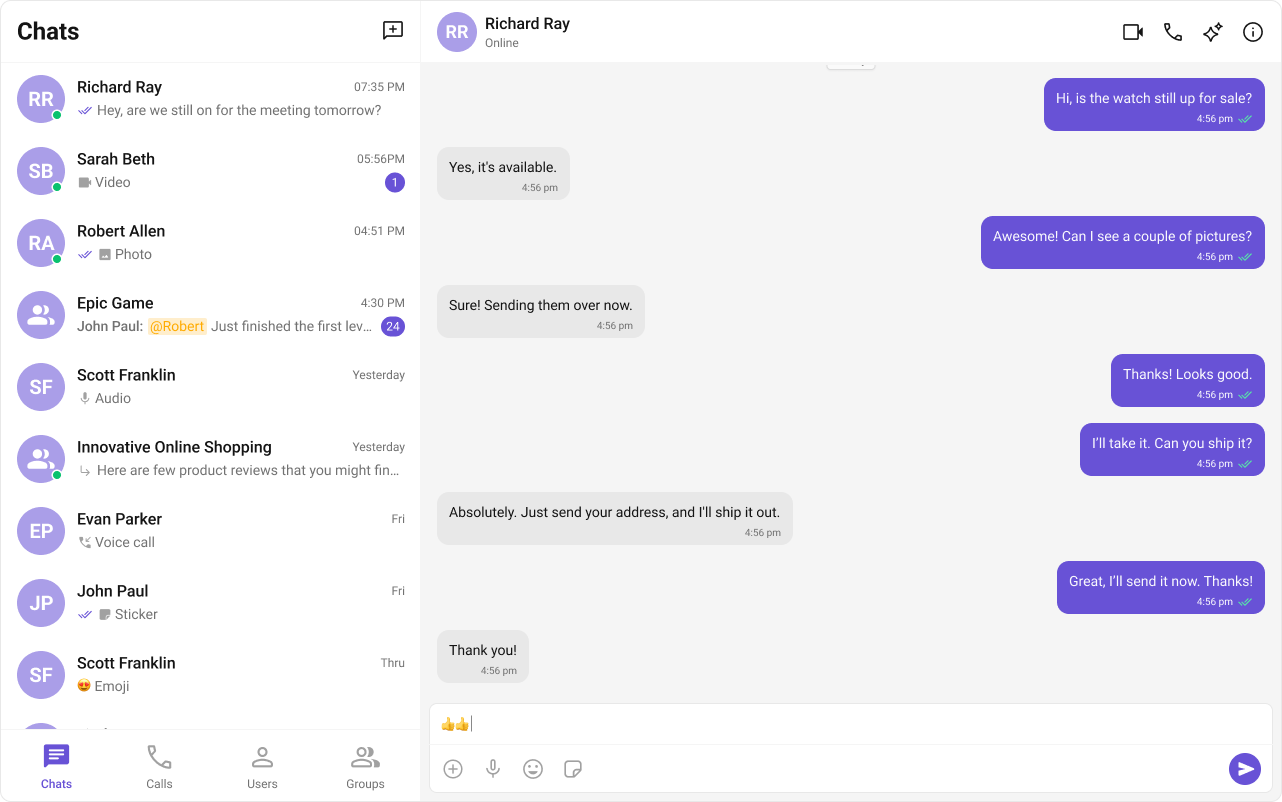
The CometChatConversationsWithMessages component provides a complete two-panel chat experience out of the box.
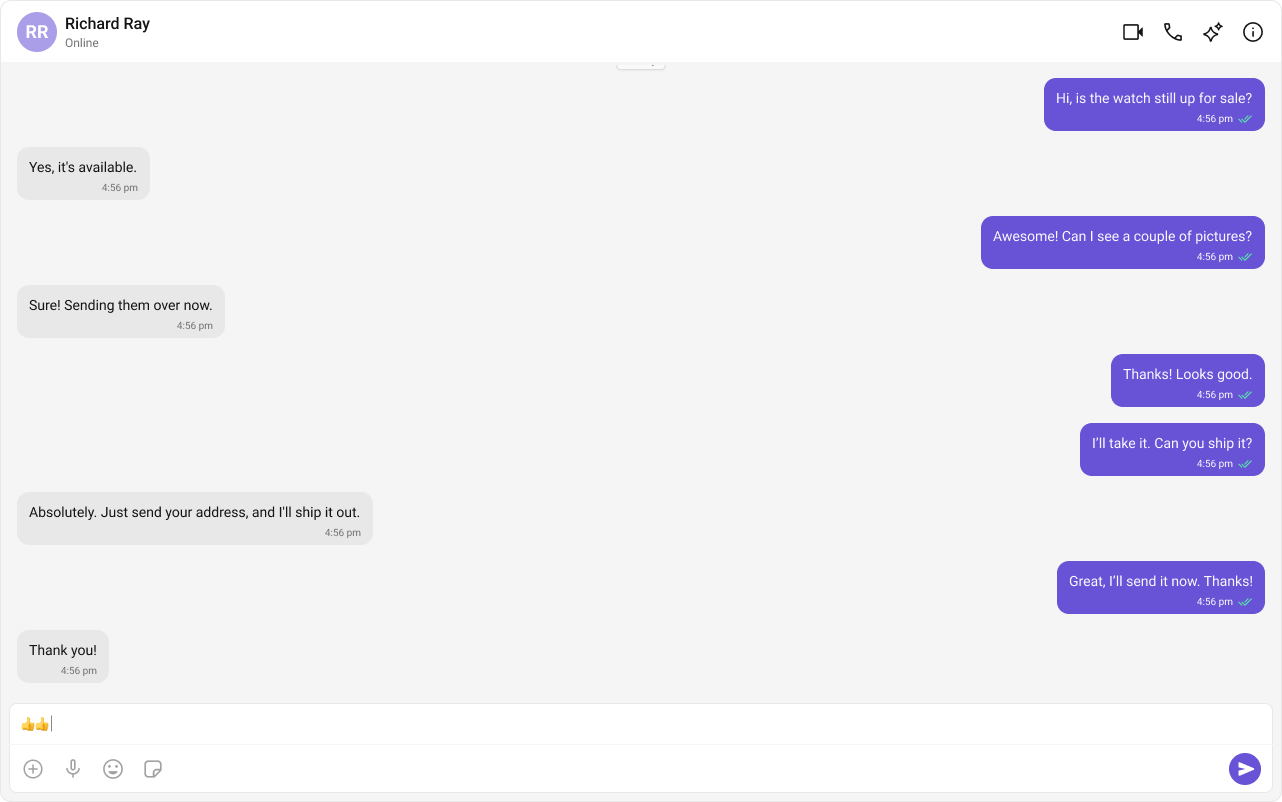
CometChatConversationsWithMessages showing conversation list and message view
Run your app:
npm run dev
You should see a conversation list on the left and a message view on the right.

Complete Example

Here’s the full implementation with all files:
export const COMETCHAT_CONSTANTS = {
  APP_ID: "APP_ID",       // Replace with your App ID
  REGION: "REGION",       // Replace with your Region (us, eu, in)
  AUTH_KEY: "AUTH_KEY",   // Replace with your Auth Key (dev only)
};

Common Patterns

Conversation List + Message View

Two-panel layout with conversation list on the left and messages on the right. This is the default experience with CometChatConversationsWithMessages.
import { CometChatConversationsWithMessages } from "@cometchat/chat-uikit-react";

function ChatApp() {
  return (
    <div style={{ width: "100vw", height: "100vh" }}>
      <CometChatConversationsWithMessages />
    </div>
  );
}
Two-panel conversation layout
Open in CodeSandbox

One-to-One Chat Layout

Single chat window without a sidebar. Ideal for support chat, embedded widgets, or focused messaging.
import { CometChat } from "@cometchat/chat-sdk-javascript";
import { CometChatMessages } from "@cometchat/chat-uikit-react";
import { useEffect, useState } from "react";

function DirectChat({ userId }: { userId: string }) {
  const [user, setUser] = useState<CometChat.User | null>(null);

  useEffect(() => {
    CometChat.getUser(userId).then(setUser);
  }, [userId]);

  if (!user) return <div>Loading...</div>;

  return (
    <div style={{ width: "100vw", height: "100vh" }}>
      <CometChatMessages user={user} />
    </div>
  );
}
One-to-one chat layout
Open in CodeSandbox

Tab-Based Chat Layout

Tabbed navigation with Chat, Call Logs, Users, and Settings in separate tabs. Good for full-featured apps.
import { useState } from "react";
import {
  CometChatConversationsWithMessages,
  CometChatUsersWithMessages,
  CometChatCallLogs,
} from "@cometchat/chat-uikit-react";

type Tab = "chat" | "users" | "calls";

function TabbedChat() {
  const [activeTab, setActiveTab] = useState<Tab>("chat");

  return (
    <div style={{ display: "flex", flexDirection: "column", height: "100vh" }}>
      <nav style={{ display: "flex", gap: "1rem", padding: "1rem", borderBottom: "1px solid #eee" }}>
        <button onClick={() => setActiveTab("chat")}>Chat</button>
        <button onClick={() => setActiveTab("users")}>Users</button>
        <button onClick={() => setActiveTab("calls")}>Calls</button>
      </nav>
      <div style={{ flex: 1 }}>
        {activeTab === "chat" && <CometChatConversationsWithMessages />}
        {activeTab === "users" && <CometChatUsersWithMessages />}
        {activeTab === "calls" && <CometChatCallLogs />}
      </div>
    </div>
  );
}
Tab-based chat layout
Open in CodeSandbox

UIKitSettingsBuilder Options

The UIKitSettingsBuilder provides additional configuration options:
const UIKitSettings = new UIKitSettingsBuilder()
  .setAppId(COMETCHAT_CONSTANTS.APP_ID)
  .setRegion(COMETCHAT_CONSTANTS.REGION)
  .setAuthKey(COMETCHAT_CONSTANTS.AUTH_KEY)
  .subscribePresenceForAllUsers()      // Subscribe to presence for all users
  .subscribePresenceForFriends()       // Or subscribe only for friends
  .subscribePresenceForRoles(["admin"]) // Or subscribe for specific roles
  .autoEstablishSocketConnection(true) // Auto-connect WebSocket (default: true)
  .build();

iFrame Embedding

If your React app runs inside an <iframe>, wrap your tree in CometChatFrameProvider:
import { CometChatFrameProvider } from "@cometchat/chat-uikit-react";

<CometChatFrameProvider iframeId="cometchat-frame">
  <App />
</CometChatFrameProvider>
PropTypeDescription
iframeIdstringThe DOM id of the target <iframe> element

Framework-Specific Considerations

State Management with React Hooks

  • Use useState to track login state and conditionally render components
  • Use useEffect for initialization and login side effects
  • Avoid rendering chat components before authentication completes

Conditional Rendering Based on Login State

Always gate component rendering on authentication state:
// ✅ Good: Conditional rendering
if (isLoading) return <LoadingSpinner />;
if (!user) return <LoginScreen />;
return <CometChatConversationsWithMessages />;

// ❌ Bad: Rendering before auth completes
return <CometChatConversationsWithMessages />; // Will show blank screen

useEffect for Initialization

Keep initialization logic in useEffect with proper cleanup:
useEffect(() => {
  let isMounted = true;

  CometChatUIKit.getLoggedinUser().then((user) => {
    if (isMounted) {
      // Handle login state
    }
  });

  return () => {
    isMounted = false;
  };
}, []);

Common Issues

init() must resolve before you call login(). If you call login() before init completes, it will fail silently.
IssueSolution
Blank screen after loginEnsure init() completes before login(), and login() completes before rendering components
Missing stylesAdd @import url("@cometchat/chat-uikit-react/css-variables.css"); to your global CSS
”App ID not found” errorVerify your App ID, Region, and Auth Key match your CometChat Dashboard
Login fails silentlyCheck browser console for errors; ensure credentials are correct
Components not updatingVerify WebSocket connection is established; check network tab for WS connections
For more troubleshooting help, see the Troubleshooting Guide or contact CometChat Support.

Next Steps