{
  "component": "CometChatOngoingCall",
  "package": "@cometchat/chat-uikit-react",
  "import": "import { CometChatOngoingCall } from \"@cometchat/chat-uikit-react\";",
  "cssImport": "import \"@cometchat/chat-uikit-react/css-variables.css\";",
  "description": "Displays the active call interface with video display area, call controls for mic/camera management, participant information, and options for recording and screen-sharing.",
  "cssRootClass": ".cometchat-ongoing-call",
  "props": {
    "data": {
      "sessionID": { "type": "string", "required": false },
      "callSettingsBuilder": { "type": "CometChatCalls.CallSettingsBuilder", "default": "undefined" },
      "callWorkflow": { "type": "CallWorkflow", "default": "CallWorkflow.defaultCalling" }
    },
    "callbacks": {
      "onError": "(error: CometChat.CometChatException) => void"
    },
    "style": {
      "ongoingCallStyle": { "type": "CallscreenStyle", "default": "undefined" }
    },
    "customization": {
      "maximizeIconURL": { "type": "string", "default": "undefined" },
      "minimizeIconURL": { "type": "string", "default": "undefined" },
      "resizeIconHoverText": { "type": "string", "default": "undefined" }
    }
  },
  "events": {
    "ccCallEnded": "Triggered when the call ends"
  }
}

Overview

This guide shows you how to display the active call interface using CometChatOngoingCall. The component provides a complete call experience with video display, mic/camera controls, and participant management. Time estimate: 10 minutes
Difficulty: Intermediate

Prerequisites

Steps

Step 1: Import the Component

import { CometChatOngoingCall } from "@cometchat/chat-uikit-react";
import "@cometchat/chat-uikit-react/css-variables.css";

Step 2: Render the Ongoing Call

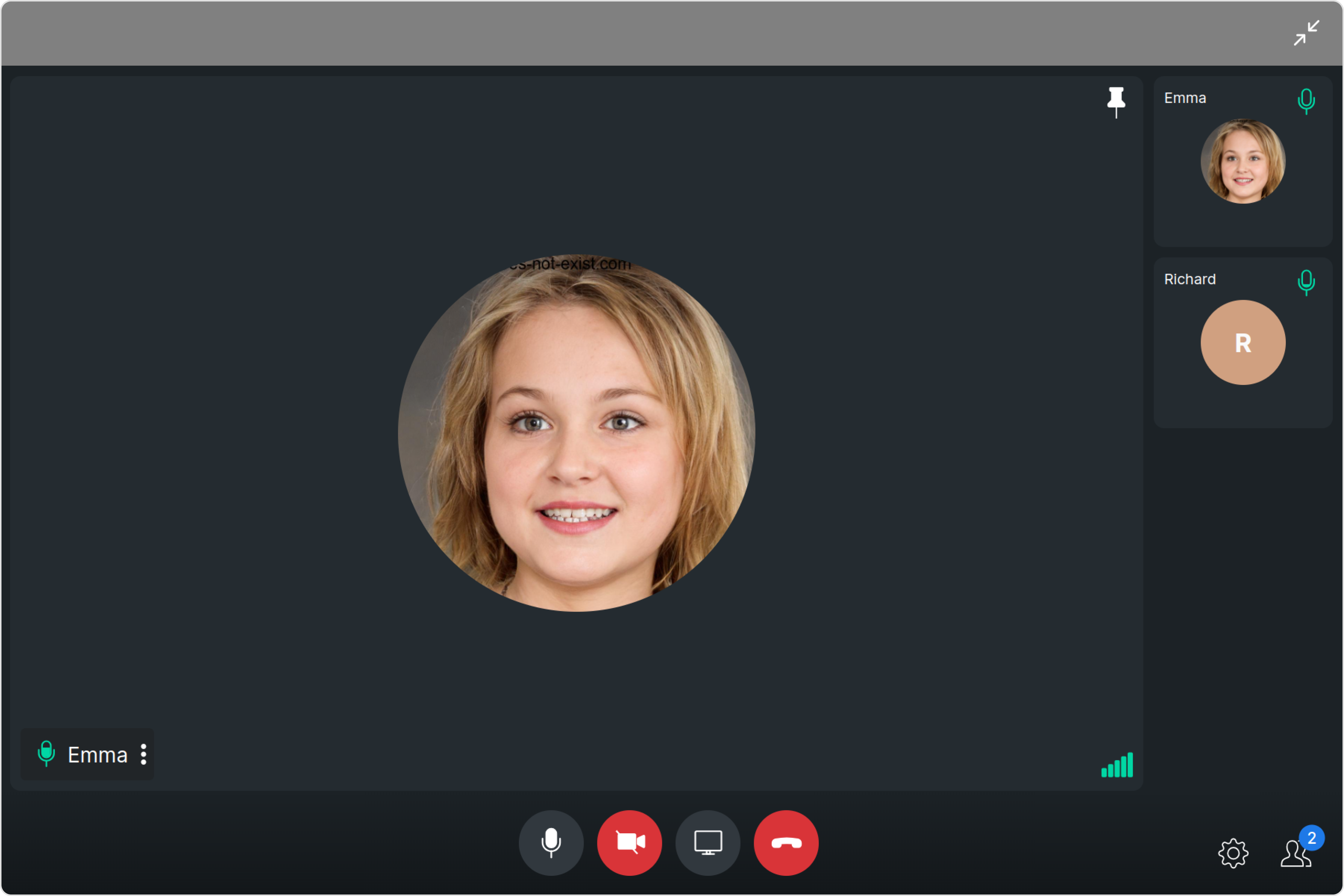
The component automatically connects to the active call session:
import { CometChatOngoingCall } from "@cometchat/chat-uikit-react";
import "@cometchat/chat-uikit-react/css-variables.css";

function OngoingCallView() {
  return <CometChatOngoingCall />;
}

export default OngoingCallView;
Ongoing call interface showing video display and controls

Step 3: Handle Call End Events

Listen for when the call ends to update your UI:
import { useEffect } from "react";
import { CometChatOngoingCall, CometChatCallEvents } from "@cometchat/chat-uikit-react";
import { CometChat } from "@cometchat/chat-sdk-javascript";
import "@cometchat/chat-uikit-react/css-variables.css";

function OngoingCallWithEvents() {
  useEffect(() => {
    const subscription = CometChatCallEvents.ccCallEnded.subscribe(
      (call: CometChat.Call) => {
        console.log("Call ended:", call);
        // Navigate back or update UI
      }
    );

    return () => subscription?.unsubscribe();
  }, []);

  return <CometChatOngoingCall />;
}

Step 4: Configure Call Settings

Customize the call experience with CallSettingsBuilder:
import { CometChatOngoingCall } from "@cometchat/chat-uikit-react";
import { CometChatCalls } from "@cometchat/calls-sdk-javascript";
import "@cometchat/chat-uikit-react/css-variables.css";

function AudioOnlyCall() {
  const callSettings = new CometChatCalls.CallSettingsBuilder()
    .setIsAudioOnlyCall(true)
    .showRecordingButton(true)
    .enableDefaultLayout(true)
    .build();

  return <CometChatOngoingCall callSettingsBuilder={callSettings} />;
}

Complete Example

Full implementation with call flow integration:
import { useEffect, useState } from "react";
import {
  CometChatOngoingCall,
  CometChatCallEvents,
  CometChatOutgoingCall,
  CometChatIncomingCall,
} from "@cometchat/chat-uikit-react";
import { CometChat } from "@cometchat/chat-sdk-javascript";
import { CometChatCalls } from "@cometchat/calls-sdk-javascript";
import "@cometchat/chat-uikit-react/css-variables.css";

type CallState = "idle" | "outgoing" | "incoming" | "ongoing";

function CallManager({ user }: { user: CometChat.User }) {
  const [callState, setCallState] = useState<CallState>("idle");

  useEffect(() => {
    // Listen for call accepted
    const acceptedSub = CometChatCallEvents.ccOutgoingCallAccepted.subscribe(() => {
      setCallState("ongoing");
    });

    // Listen for call ended
    const endedSub = CometChatCallEvents.ccCallEnded.subscribe(() => {
      setCallState("idle");
    });

    return () => {
      acceptedSub?.unsubscribe();
      endedSub?.unsubscribe();
    };
  }, []);

  const callSettings = new CometChatCalls.CallSettingsBuilder()
    .enableDefaultLayout(true)
    .showRecordingButton(true)
    .build();

  return (
    <div style={{ height: "100vh" }}>
      {callState === "outgoing" && <CometChatOutgoingCall />}
      {callState === "incoming" && <CometChatIncomingCall />}
      {callState === "ongoing" && (
        <CometChatOngoingCall
          callSettingsBuilder={callSettings}
          onError={(error) => console.error("Call error:", error)}
        />
      )}
    </div>
  );
}

export default CallManager;

Direct Calling Mode

For direct calls without CometChat’s call management:
import { CometChatOngoingCall, CallWorkflow } from "@cometchat/chat-uikit-react";

function DirectCall({ sessionId }: { sessionId: string }) {
  return (
    <CometChatOngoingCall
      sessionID={sessionId}
      callWorkflow={CallWorkflow.directCalling}
    />
  );
}

Custom Call Settings

Full control over call features:
const advancedSettings = new CometChatCalls.CallSettingsBuilder()
  .setIsAudioOnlyCall(false)
  .showRecordingButton(true)
  .showSwitchCameraButton(true)
  .showMuteAudioButton(true)
  .showPauseVideoButton(true)
  .showEndCallButton(true)
  .setMainVideoContainerSetting(
    new CometChatCalls.MainVideoContainerSetting()
      .setMainVideoAspectRatio("contain")
      .setFullScreenButtonParams("#000", true)
  )
  .build();

Styling

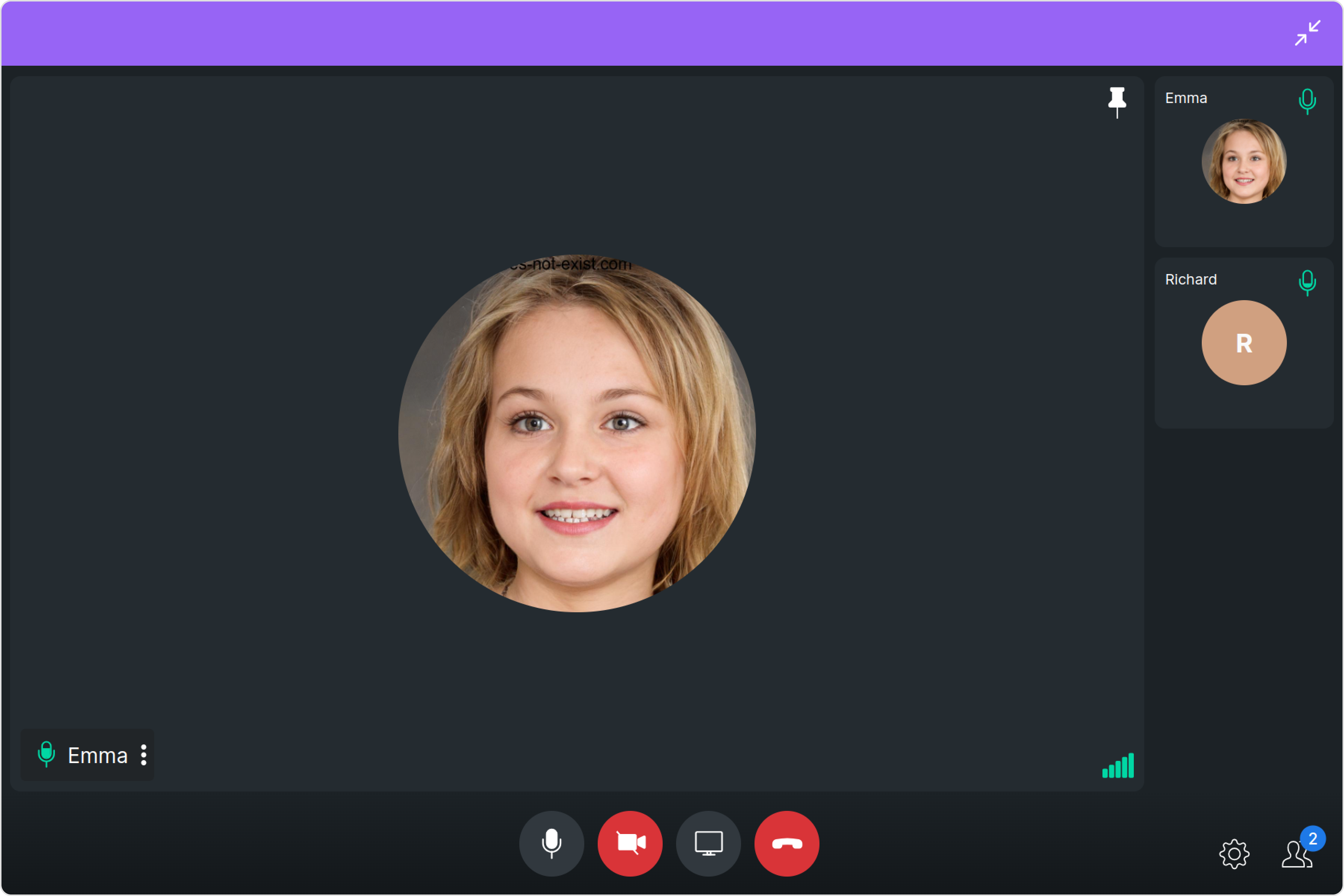
Customize the call screen appearance:
import { CometChatOngoingCall, CallscreenStyle } from "@cometchat/chat-uikit-react";

function StyledOngoingCall() {
  const callStyle = new CallscreenStyle({
    background: "#1a1a2e",
    maximizeIconTint: "#ffffff",
    minimizeIconTint: "#ffffff",
    borderRadius: "12px",
  });

  return (
    <CometChatOngoingCall
      ongoingCallStyle={callStyle}
      maximizeIconURL="/icons/maximize.svg"
      minimizeIconURL="/icons/minimize.svg"
    />
  );
}
Styled ongoing call interface

CSS Customization

.cometchat-ongoing-call {
  background: linear-gradient(135deg, #1a1a2e 0%, #16213e 100%);
  border-radius: 16px;
}

Common Issues

Ensure the CometChat Calls SDK is properly initialized before rendering the ongoing call component.
IssueSolution
Black screenCheck camera permissions and ensure callSettingsBuilder is configured correctly
No audioVerify microphone permissions and check setIsAudioOnlyCall setting
Call not connectingEnsure the session ID matches between caller and callee
Controls not showingSet enableDefaultLayout(true) in call settings

Next Steps