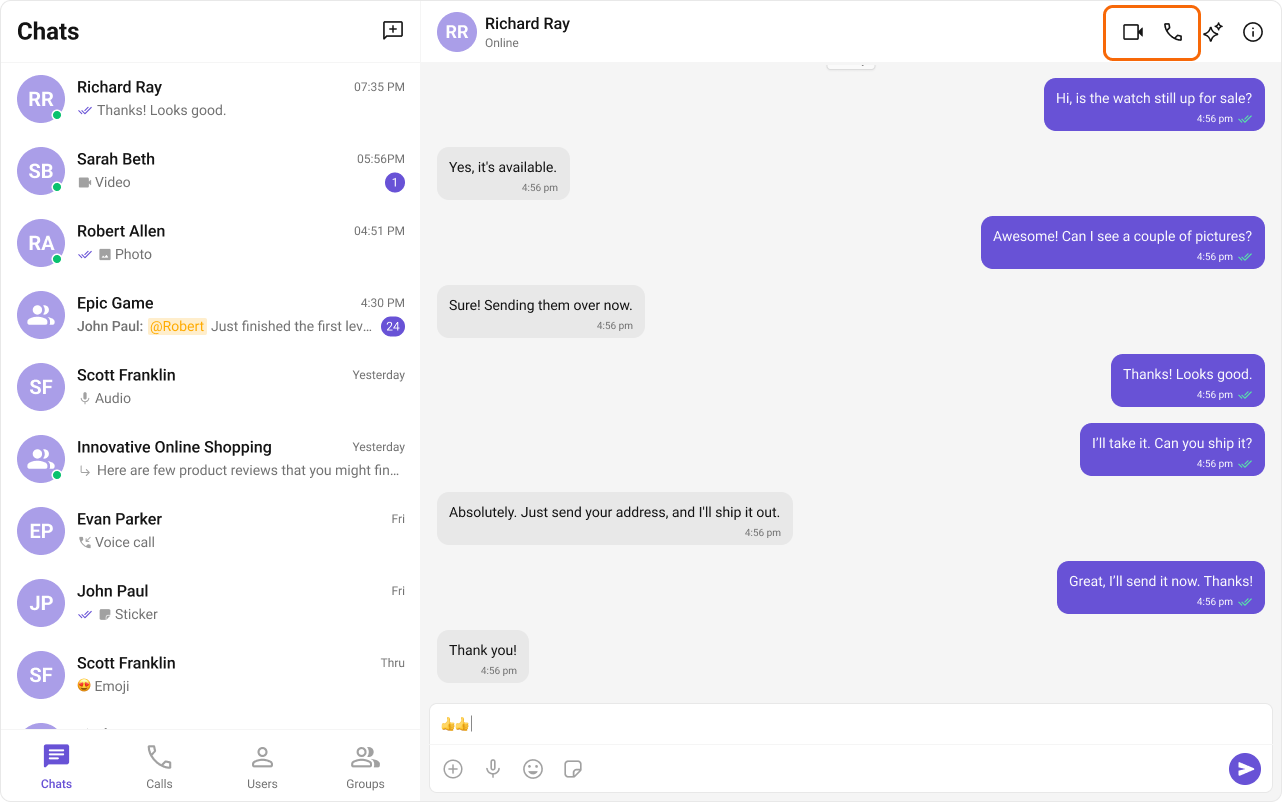
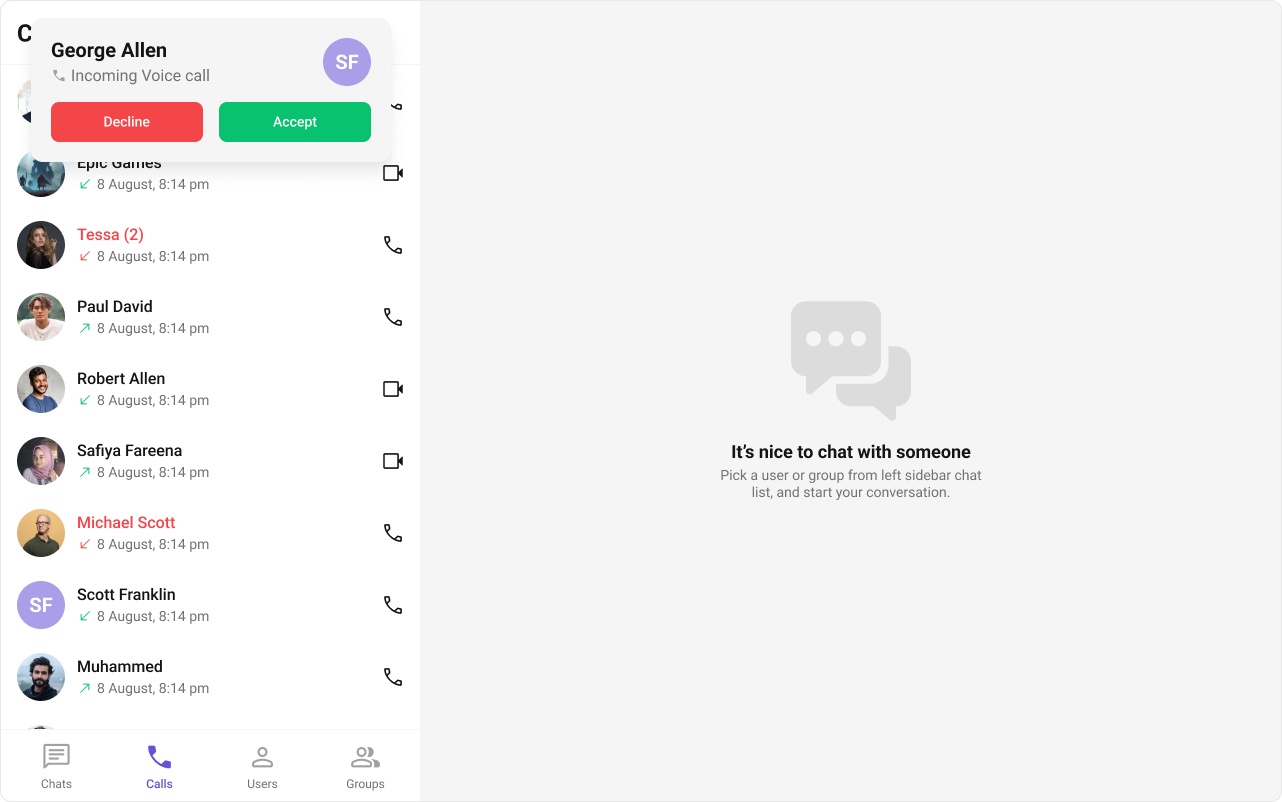
Field Value Packages @cometchat/chat-uikit-react + @cometchat/calls-sdk-javascriptCall Buttons CometChatCallButtons — voice and video call initiationIncoming Call CometChatIncomingCall — incoming call notification overlayOutgoing Call CometChatOutgoingCall — outgoing call screen overlayCSS Import @import url("@cometchat/chat-uikit-react/css-variables.css");Auto-detection UI Kit automatically detects Calls SDK and enables call components
Overview This guide shows you how to add voice and video calling to your React app. You’ll learn to install the Calls SDK, add call buttons, handle incoming and outgoing calls, and customize the call experience.
Time estimate: 20 minutes
Difficulty: IntermediatePrerequisites
React.js Integration completed (CometChat initialized and user logged in)Basic familiarity with React hooks (useState, useEffect)
Use Cases Voice and video calling is ideal for:
1:1 communication — Direct voice or video calls between usersGroup calls — Multi-participant audio/video conferencesCustomer support — Real-time voice/video support channelsTelehealth — Video consultations and appointments
Required Components Component Purpose CometChatCallButtonsVoice and video call initiation buttons CometChatIncomingCallIncoming call notification with accept/decline CometChatOutgoingCallOutgoing call screen with cancel option
Steps Step 1: Install the Calls SDK The Calls SDK is required for voice and video calling. Install it alongside the UI Kit:
npm install @cometchat/calls-sdk-javascript
The React UI Kit automatically detects the Calls SDK and enables call components. No additional configuration is needed.
Add call buttons to enable users to initiate voice and video calls:
import { useState , useEffect } from "react" ; import { CometChat } from "@cometchat/chat-sdk-javascript" ; import { CometChatCallButtons } from "@cometchat/chat-uikit-react" ; import "@cometchat/chat-uikit-react/css-variables.css" ; function CallButtonsDemo () { const [ user , setUser ] = useState < CometChat . User >(); useEffect (() => { CometChat . getUser ( "user_uid" ). then ( setUser ); }, []); if ( ! user ) return null ; return < CometChatCallButtons user = { user } /> ; } export default CallButtonsDemo ;
For group calls, pass a group prop instead:
< CometChatCallButtons group = { group } />
Step 3: Handle Incoming Calls Add the CometChatIncomingCall component at your app’s root level to handle incoming calls:
import { CometChatIncomingCall } from "@cometchat/chat-uikit-react" ; import "@cometchat/chat-uikit-react/css-variables.css" ; function App () { return ( < div style = { { position: "relative" , height: "100vh" } } > { /* This component auto-detects incoming calls */ } < CometChatIncomingCall /> { /* Rest of your app */ } < YourChatApp /> </ div > ); } export default App ;
The component automatically:
Listens for incoming call events
Displays caller information
Plays a ringtone
Provides accept/decline buttons
Transitions to the ongoing call screen on accept
Call buttons are typically displayed in the message header. The CometChatMessageHeader component includes call buttons automatically when the Calls SDK is installed:
import { useState } from "react" ; import { CometChatConversations , CometChatMessageHeader , CometChatMessageList , CometChatMessageComposer , CometChatIncomingCall , } from "@cometchat/chat-uikit-react" ; import { CometChat } from "@cometchat/chat-sdk-javascript" ; import "@cometchat/chat-uikit-react/css-variables.css" ; function ChatWithCalling () { const [ selectedConversation , setSelectedConversation ] = useState < CometChat . Conversation >(); const getConversationWith = () => { if ( ! selectedConversation ) return null ; const type = selectedConversation . getConversationType (); if ( type === "user" ) { return { user: selectedConversation . getConversationWith () as CometChat . User }; } return { group: selectedConversation . getConversationWith () as CometChat . Group }; }; const conversationWith = getConversationWith (); return ( < div style = { { display: "flex" , height: "100vh" , width: "100vw" } } > { /* Incoming call handler - place at root level */ } < CometChatIncomingCall /> { /* Conversations Panel */ } < div style = { { width: 400 , height: "100%" , borderRight: "1px solid #eee" } } > < CometChatConversations onItemClick = { ( conversation ) => setSelectedConversation ( conversation ) } /> </ div > { /* Message Panel with Call Buttons in Header */ } { conversationWith ? ( < div style = { { flex: 1 , display: "flex" , flexDirection: "column" } } > < CometChatMessageHeader { ... conversationWith } /> < CometChatMessageList { ... conversationWith } /> < CometChatMessageComposer { ... conversationWith } /> </ div > ) : ( < div style = { { flex: 1 , display: "grid" , placeItems: "center" , background: "#f5f5f5" , color: "#727272" } } > Select a conversation to start messaging </ div > ) } </ div > ); } export default ChatWithCalling ;
Step 5: Initiate Calls Programmatically For custom call initiation, use the CometChat SDK directly:
import { CometChat } from "@cometchat/chat-sdk-javascript" ; import { CometChatOutgoingCall , CometChatUIKitConstants , CometChatCallEvents , } from "@cometchat/chat-uikit-react" ; import { useState } from "react" ; function InitiateCall ({ userId } : { userId : string }) { const [ call , setCall ] = useState < CometChat . Call >(); const startVoiceCall = async () => { const callObject = new CometChat . Call ( userId , CometChatUIKitConstants . MessageTypes . audio , CometChatUIKitConstants . MessageReceiverType . user ); try { const initiatedCall = await CometChat . initiateCall ( callObject ); CometChatCallEvents . ccOutgoingCall . next ( initiatedCall ); setCall ( initiatedCall ); } catch ( error ) { console . error ( "Call initiation failed:" , error ); } }; const startVideoCall = async () => { const callObject = new CometChat . Call ( userId , CometChatUIKitConstants . MessageTypes . video , CometChatUIKitConstants . MessageReceiverType . user ); try { const initiatedCall = await CometChat . initiateCall ( callObject ); CometChatCallEvents . ccOutgoingCall . next ( initiatedCall ); setCall ( initiatedCall ); } catch ( error ) { console . error ( "Call initiation failed:" , error ); } }; const cancelCall = async () => { if ( call ) { await CometChat . endCall ( call . getSessionId ()); setCall ( undefined ); } }; return ( < div > < button onClick = { startVoiceCall } > Voice Call </ button > < button onClick = { startVideoCall } > Video Call </ button > { call && ( < CometChatOutgoingCall call = { call } onCallCanceled = { cancelCall } /> ) } </ div > ); } export default InitiateCall ;
Step 6: Listen to Call Events Subscribe to call events for custom handling:
import { useEffect } from "react" ; import { CometChatCallEvents } from "@cometchat/chat-uikit-react" ; import { CometChat } from "@cometchat/chat-sdk-javascript" ; function useCallEvents () { useEffect (() => { const outgoingSub = CometChatCallEvents . ccOutgoingCall . subscribe ( ( call : CometChat . Call ) => { console . log ( "Outgoing call initiated:" , call . getSessionId ()); } ); const acceptedSub = CometChatCallEvents . ccCallAccepted . subscribe ( ( call : CometChat . Call ) => { console . log ( "Call accepted:" , call . getSessionId ()); } ); const rejectedSub = CometChatCallEvents . ccCallRejected . subscribe ( ( call : CometChat . Call ) => { console . log ( "Call rejected:" , call . getSessionId ()); } ); const endedSub = CometChatCallEvents . ccCallEnded . subscribe ( ( call : CometChat . Call ) => { console . log ( "Call ended:" , call . getSessionId ()); } ); return () => { outgoingSub ?. unsubscribe (); acceptedSub ?. unsubscribe (); rejectedSub ?. unsubscribe (); endedSub ?. unsubscribe (); }; }, []); } export default useCallEvents ;
Event Fires When ccOutgoingCallA call is initiated ccCallAcceptedThe recipient accepts the call ccCallRejectedThe recipient rejects the call ccCallEndedThe call session ends
Complete Example Here’s a full implementation with chat and calling:
import { useState , useEffect } from "react" ; import { CometChatConversations , CometChatMessageHeader , CometChatMessageList , CometChatMessageComposer , CometChatIncomingCall , CometChatCallEvents , } from "@cometchat/chat-uikit-react" ; import { CometChat } from "@cometchat/chat-sdk-javascript" ; import "@cometchat/chat-uikit-react/css-variables.css" ; function ChatAppWithCalling () { const [ selectedConversation , setSelectedConversation ] = useState < CometChat . Conversation >(); // Listen to call events useEffect (() => { const acceptedSub = CometChatCallEvents . ccCallAccepted . subscribe ( ( call : CometChat . Call ) => { console . log ( "Call accepted:" , call . getSessionId ()); } ); const endedSub = CometChatCallEvents . ccCallEnded . subscribe ( ( call : CometChat . Call ) => { console . log ( "Call ended:" , call . getSessionId ()); } ); return () => { acceptedSub ?. unsubscribe (); endedSub ?. unsubscribe (); }; }, []); const getConversationWith = () => { if ( ! selectedConversation ) return null ; const type = selectedConversation . getConversationType (); if ( type === "user" ) { return { user: selectedConversation . getConversationWith () as CometChat . User }; } return { group: selectedConversation . getConversationWith () as CometChat . Group }; }; const conversationWith = getConversationWith (); return ( < div style = { { display: "flex" , height: "100vh" , width: "100vw" } } > { /* Global incoming call handler */ } < CometChatIncomingCall onAccept = { ( call ) => console . log ( "Accepted call from:" , call . getCallInitiator ()?. getName ()) } onDecline = { ( call ) => console . log ( "Declined call from:" , call . getCallInitiator ()?. getName ()) } /> { /* Conversations Panel */ } < div style = { { width: 400 , height: "100%" , borderRight: "1px solid #eee" } } > < CometChatConversations onItemClick = { ( conversation ) => setSelectedConversation ( conversation ) } activeConversation = { selectedConversation } /> </ div > { /* Message Panel */ } { conversationWith ? ( < div style = { { flex: 1 , display: "flex" , flexDirection: "column" } } > { /* Header includes call buttons automatically */ } < CometChatMessageHeader { ... conversationWith } /> < CometChatMessageList { ... conversationWith } /> < CometChatMessageComposer { ... conversationWith } /> </ div > ) : ( < div style = { { flex: 1 , display: "grid" , placeItems: "center" , background: "#f5f5f5" , color: "#727272" } } > Select a conversation to start messaging </ div > ) } </ div > ); } export default ChatAppWithCalling ;
Hide the video call button: < CometChatCallButtons user = { user } hideVideoCallButton = { true } />
Custom Ringtones Set custom ringtones for incoming and outgoing calls: // Custom incoming call ringtone < CometChatIncomingCall customSoundForCalls = "/sounds/incoming.mp3" /> // Custom outgoing call ringtone < CometChatOutgoingCall call = { call } customSoundForCalls = "/sounds/outgoing.mp3" />
Silent Calls (No Ringtone) Disable ringtones: < CometChatIncomingCall disableSoundForCalls = { true } /> < CometChatOutgoingCall call = { call } disableSoundForCalls = { true } />
Custom Call Settings Customize the call experience using callSettingsBuilder: import { CometChatCallButtons , CometChatUIKitCalls } from "@cometchat/chat-uikit-react" ; < CometChatCallButtons user = { user } callSettingsBuilder = { ( isAudioOnlyCall , user , group ) => new CometChatUIKitCalls . CallSettingsBuilder () . enableDefaultLayout ( true ) . setIsAudioOnlyCall ( isAudioOnlyCall ) } />
Custom Outgoing Call Configuration Customize the outgoing call screen: import { CometChatCallButtons , OutgoingCallConfiguration } from "@cometchat/chat-uikit-react" ; < CometChatCallButtons user = { user } outgoingCallConfiguration = { new OutgoingCallConfiguration ({ disableSoundForCalls: false , titleView : ( call ) => < div > { call . getCallReceiver (). getName () } </ div > , subtitleView : ( call ) => < div > Calling... </ div > , }) } />
Key CSS Selectors Target Selector Call buttons root .cometchat-call-buttonVoice button .cometchat-call-button__voiceVideo button .cometchat-call-button__videoIncoming call root .cometchat-incoming-callAccept button .cometchat-incoming-call__button-acceptDecline button .cometchat-incoming-call__button-declineOutgoing call root .cometchat-outgoing-callCancel button .cometchat-outgoing-call__button
.cometchat-call-button .cometchat-button { border-radius : 8 px ; border : 1 px solid #e8e8e8 ; background : #edeafa ; } .cometchat-call-button .cometchat-button__icon { background-color : #6852d6 ; } .cometchat-incoming-call__button-accept .cometchat-button { background-color : #6852d6 ; } .cometchat-outgoing-call__button .cometchat-button { background-color : #f44649 ; }
Common Issues The Calls SDK must be installed for call components to work. Install it with npm install @cometchat/calls-sdk-javascript.
Issue Solution Call buttons not showing Ensure @cometchat/calls-sdk-javascript is installed Incoming calls not detected Place CometChatIncomingCall at the app root level No ringtone playing Check browser autoplay policies; user interaction may be required first Call fails to connect Verify both users are online and logged in Outgoing call screen not showing Ensure CometChatCallEvents.ccOutgoingCall.next() is called after initiateCall() Styles missing Add @import url("@cometchat/chat-uikit-react/css-variables.css"); to global CSS
For more help, see the Troubleshooting Guide or contact CometChat Support .
Next Steps