{
  "component": "StickersExtension",
  "package": "@cometchat/chat-uikit-react",
  "import": "import { StickersExtension } from \"@cometchat/chat-uikit-react\";",
  "cssImport": "import \"@cometchat/chat-uikit-react/css-variables.css\";",
  "description": "Enables sending pre-designed stickers in chat conversations. Stickers appear in the message composer and render as image messages.",
  "dashboardSetup": "Enable Stickers in CometChat Dashboard > Extensions > User Engagement",
  "autoIntegration": {
    "messageComposer": "Sticker button appears next to emoji picker",
    "messageList": "Sticker messages render as images"
  }
}

Overview

This guide shows you how to add sticker support to your chat using CometChat’s Stickers extension. Stickers provide users with pre-designed images they can send to express emotions and reactions. Time estimate: 5 minutes
Difficulty: Beginner

Prerequisites

Steps

Step 1: Enable Stickers Extension

  1. Go to your CometChat Dashboard
  2. Navigate to ExtensionsUser Engagement
  3. Enable Stickers

Step 2: Stickers Auto-Integration

Once enabled, stickers automatically integrate into your chat:
import {
  CometChatMessageList,
  CometChatMessageComposer,
} from "@cometchat/chat-uikit-react";
import { CometChat } from "@cometchat/chat-sdk-javascript";
import "@cometchat/chat-uikit-react/css-variables.css";

function ChatWithStickers({ user }: { user: CometChat.User }) {
  return (
    <div style={{ display: "flex", flexDirection: "column", height: "100vh" }}>
      <CometChatMessageList user={user} />
      <CometChatMessageComposer user={user} />
    </div>
  );
}

export default ChatWithStickers;
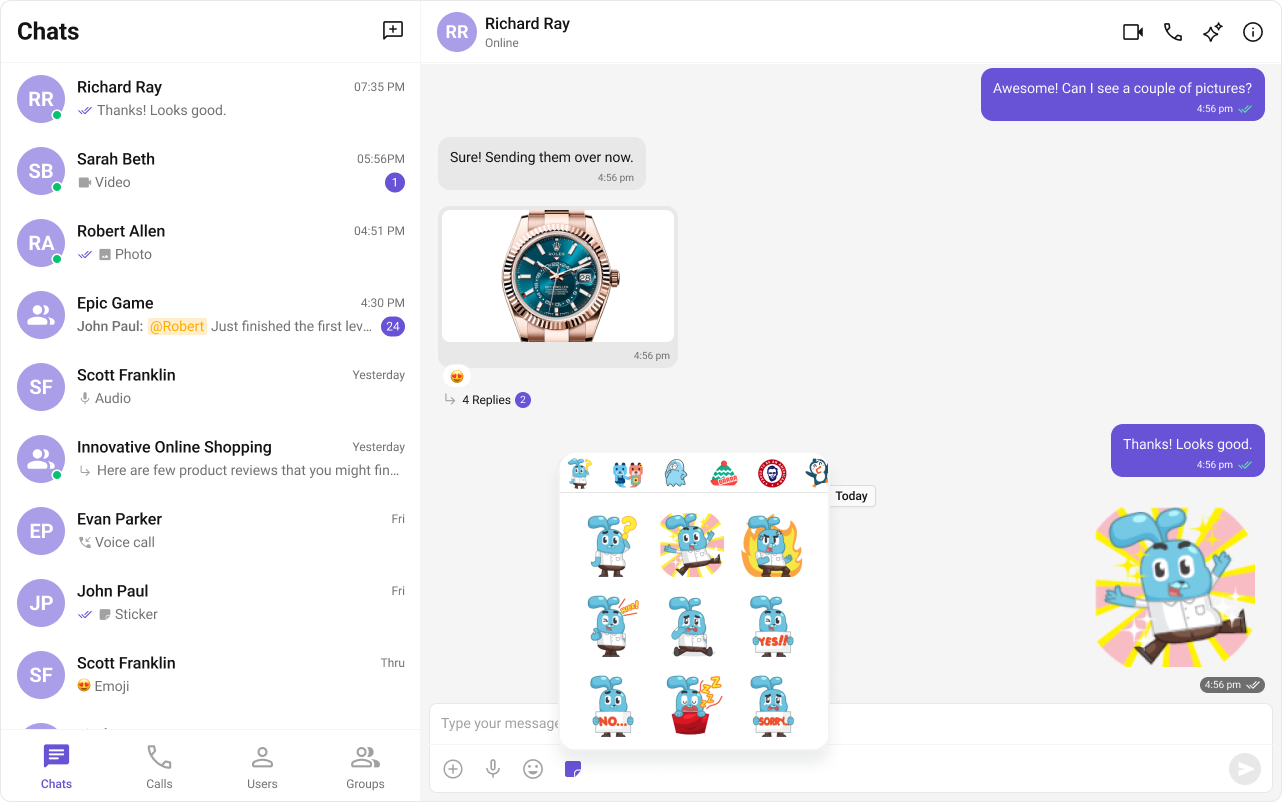
The sticker button appears in the message composer next to the emoji picker.
Sticker picker interface

Step 3: Send Stickers

Users can send stickers through the UI:
  1. Click the sticker icon in the message composer
  2. Browse available sticker packs
  3. Click a sticker to send it

Step 4: View Sticker Messages

Sticker messages render as images in the message list with proper sizing and styling.

Complete Example

Full chat implementation with stickers:
import { useState, useEffect } from "react";
import {
  CometChatMessageList,
  CometChatMessageComposer,
  CometChatMessageHeader,
} from "@cometchat/chat-uikit-react";
import { CometChat } from "@cometchat/chat-sdk-javascript";
import "@cometchat/chat-uikit-react/css-variables.css";

function StickersChat() {
  const [user, setUser] = useState<CometChat.User | null>(null);

  useEffect(() => {
    CometChat.getUser("USER_ID").then(setUser);
  }, []);

  if (!user) return <div>Loading...</div>;

  return (
    <div style={{ display: "flex", flexDirection: "column", height: "100vh" }}>
      <CometChatMessageHeader user={user} />
      
      <div style={{ flex: 1, overflow: "hidden" }}>
        <CometChatMessageList user={user} />
      </div>
      
      <CometChatMessageComposer user={user} />
    </div>
  );
}

export default StickersChat;

Fetch Available Stickers

Get sticker packs programmatically:
import { CometChat } from "@cometchat/chat-sdk-javascript";

interface StickerPack {
  id: string;
  name: string;
  stickers: Sticker[];
}

interface Sticker {
  id: string;
  url: string;
  name: string;
}

async function getStickers(): Promise<StickerPack[]> {
  try {
    const response = await CometChat.callExtension(
      "stickers",
      "GET",
      "v1/fetch",
      null
    );
    return response.data?.defaultStickers || [];
  } catch (error) {
    console.error("Error fetching stickers:", error);
    return [];
  }
}

Send Stickers Programmatically

import { CometChat } from "@cometchat/chat-sdk-javascript";

interface SendStickerParams {
  stickerUrl: string;
  stickerName: string;
  receiverId: string;
  receiverType: string;
}

async function sendSticker({
  stickerUrl,
  stickerName,
  receiverId,
  receiverType,
}: SendStickerParams) {
  const stickerData = {
    sticker_url: stickerUrl,
    sticker_name: stickerName,
  };

  const customMessage = new CometChat.CustomMessage(
    receiverId,
    receiverType,
    "extension_sticker",
    stickerData
  );

  try {
    const message = await CometChat.sendCustomMessage(customMessage);
    console.log("Sticker sent:", message);
    return message;
  } catch (error) {
    console.error("Error sending sticker:", error);
    throw error;
  }
}

Custom Sticker Picker

Build a custom sticker selection UI:
import { useState, useEffect } from "react";
import { CometChat } from "@cometchat/chat-sdk-javascript";

interface StickerPickerProps {
  onStickerSelect: (stickerUrl: string, stickerName: string) => void;
  onClose: () => void;
}

function CustomStickerPicker({ onStickerSelect, onClose }: StickerPickerProps) {
  const [packs, setPacks] = useState<any[]>([]);
  const [activePack, setActivePack] = useState<string | null>(null);
  const [loading, setLoading] = useState(true);

  useEffect(() => {
    CometChat.callExtension("stickers", "GET", "v1/fetch", null)
      .then((response) => {
        const stickerPacks = response.data?.defaultStickers || [];
        setPacks(stickerPacks);
        if (stickerPacks.length > 0) {
          setActivePack(stickerPacks[0].id);
        }
      })
      .finally(() => setLoading(false));
  }, []);

  if (loading) return <div className="sticker-picker-loading">Loading...</div>;

  const currentPack = packs.find((p) => p.id === activePack);

  return (
    <div className="custom-sticker-picker">
      <div className="sticker-picker-header">
        <span>Stickers</span>
        <button onClick={onClose}>×</button>
      </div>

      {/* Pack tabs */}
      <div className="sticker-pack-tabs">
        {packs.map((pack) => (
          <button
            key={pack.id}
            className={activePack === pack.id ? "active" : ""}
            onClick={() => setActivePack(pack.id)}
          >
            <img src={pack.stickers[0]?.url} alt={pack.name} />
          </button>
        ))}
      </div>

      {/* Sticker grid */}
      <div className="sticker-grid">
        {currentPack?.stickers.map((sticker: any) => (
          <button
            key={sticker.id}
            className="sticker-item"
            onClick={() => onStickerSelect(sticker.url, sticker.name)}
          >
            <img src={sticker.url} alt={sticker.name} />
          </button>
        ))}
      </div>
    </div>
  );
}

Listen for Sticker Messages

Handle incoming sticker messages:
import { useEffect } from "react";
import { CometChat } from "@cometchat/chat-sdk-javascript";

function useStickerEvents() {
  useEffect(() => {
    const listenerId = "sticker-listener";

    CometChat.addMessageListener(
      listenerId,
      new CometChat.MessageListener({
        onCustomMessageReceived: (message: CometChat.CustomMessage) => {
          if (message.getType() === "extension_sticker") {
            const data = message.getData();
            console.log("Sticker received:", data.customData?.sticker_url);
          }
        },
      })
    );

    return () => CometChat.removeMessageListener(listenerId);
  }, []);
}

Styling

Customize sticker appearance:
/* Sticker picker button */
.cometchat-message-composer__sticker-button {
  padding: 8px;
  border-radius: 8px;
  cursor: pointer;
}

.cometchat-message-composer__sticker-button:hover {
  background: #f0f0f0;
}

/* Sticker picker panel */
.cometchat-sticker-picker {
  background: #ffffff;
  border-radius: 12px;
  box-shadow: 0 4px 12px rgba(0, 0, 0, 0.15);
  max-height: 320px;
  overflow: hidden;
}

/* Sticker pack tabs */
.cometchat-sticker-picker__tabs {
  display: flex;
  padding: 8px;
  border-bottom: 1px solid #e0e0e0;
  overflow-x: auto;
}

.cometchat-sticker-picker__tab {
  width: 40px;
  height: 40px;
  padding: 4px;
  border-radius: 8px;
  cursor: pointer;
}

.cometchat-sticker-picker__tab--active {
  background: #e3f2fd;
}

/* Sticker grid */
.cometchat-sticker-picker__grid {
  display: grid;
  grid-template-columns: repeat(4, 1fr);
  gap: 8px;
  padding: 12px;
  overflow-y: auto;
  max-height: 240px;
}

.cometchat-sticker-picker__sticker {
  width: 64px;
  height: 64px;
  cursor: pointer;
  transition: transform 0.2s;
}

.cometchat-sticker-picker__sticker:hover {
  transform: scale(1.1);
}

/* Sticker message bubble */
.cometchat-sticker-bubble {
  max-width: 150px;
}

.cometchat-sticker-bubble img {
  width: 100%;
  height: auto;
}

Common Issues

Stickers require the extension to be enabled in your CometChat Dashboard. The sticker button won’t appear without it.
IssueSolution
Sticker button not showingEnable Stickers extension in Dashboard
Stickers not loadingCheck network connectivity and API limits
Stickers appear brokenVerify sticker URLs are accessible
Custom stickers not workingEnsure custom sticker pack is properly configured

Next Steps