Field Value Package @cometchat/chat-uikit-reactPrimary Component CometChatCallLogs — scrollable list of call historyPrimary Output onItemClick: (call: any) => voidCSS Import @import url("@cometchat/chat-uikit-react/css-variables.css");CSS Root Class .cometchat-call-logsFiltering callLogRequestBuilder prop accepts CallLogRequestBuilder
Overview This guide shows you how to display call history in your React app. You’ll learn to render call logs, filter by call type or status, handle call-back actions, and customize the display.
Time estimate: 10 minutes
Difficulty: BeginnerPrerequisites Use Cases Call logs are ideal for:
Call history — Display past voice and video callsMissed calls — Show missed call notificationsCall-back functionality — Enable users to return callsCall analytics — Track call patterns and duration
Required Components Component Purpose CometChatCallLogsScrollable list of call history entries
Steps Step 1: Basic Call Logs Start with a simple call log list:
import { CometChatCallLogs } from "@cometchat/chat-uikit-react" ; import "@cometchat/chat-uikit-react/css-variables.css" ; function CallLogList () { return ( < div style = { { width: "100%" , height: "100vh" } } > < CometChatCallLogs /> </ div > ); } export default CallLogList ;
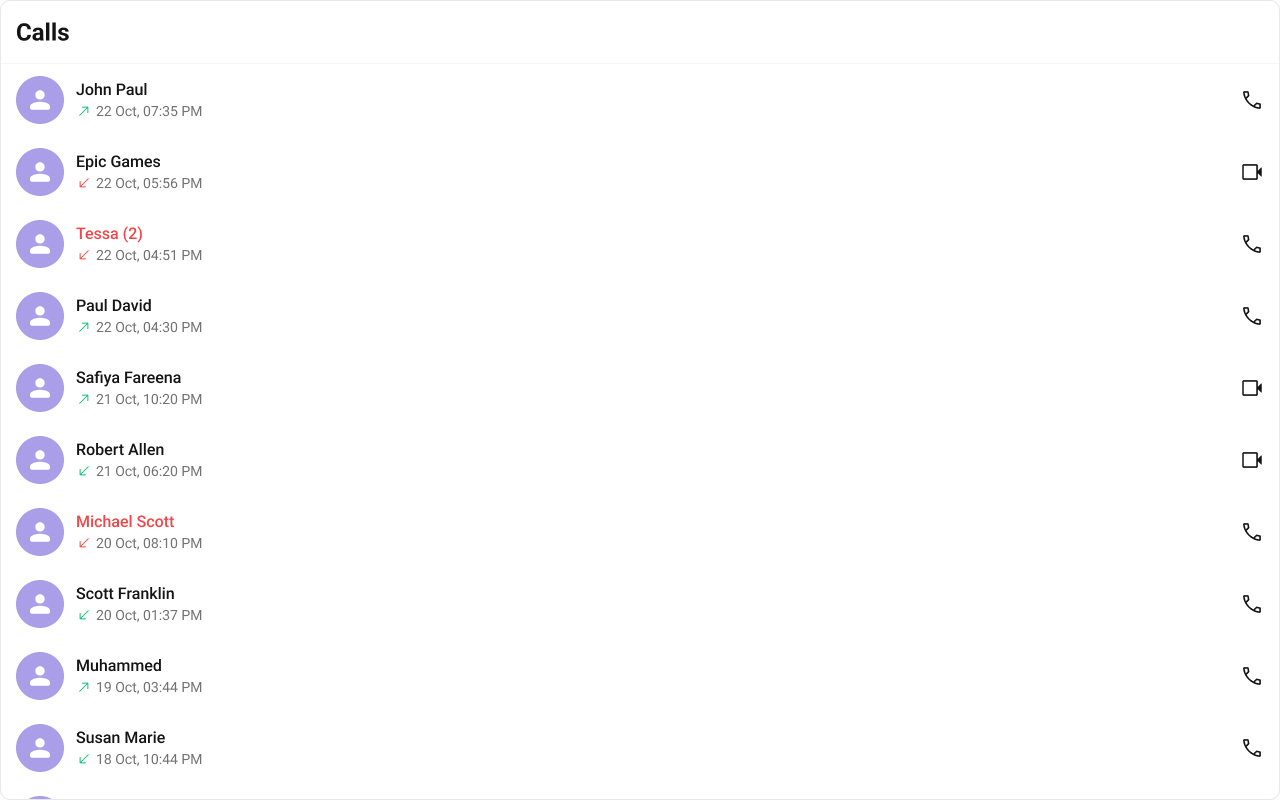
This renders a scrollable list with:
Caller/callee avatars and names
Call type indicators (voice/video)
Call direction icons (incoming/outgoing/missed)
Call timestamps
Call-back buttons
Step 2: Handle Call Log Selection Add callbacks to handle user interactions:
import { CometChatCallLogs } from "@cometchat/chat-uikit-react" ; import "@cometchat/chat-uikit-react/css-variables.css" ; function CallLogsWithHandlers () { const handleItemClick = ( callLog : any ) => { console . log ( "Call log selected:" , callLog ); console . log ( "Caller:" , callLog . getInitiator ()?. getName ()); console . log ( "Status:" , callLog . getStatus ()); console . log ( "Duration:" , callLog . getTotalDurationInMinutes (), "minutes" ); }; const handleCallBack = ( callLog : any ) => { console . log ( "Call back:" , callLog . getInitiator ()?. getUid ()); // Initiate a new call to this user }; return ( < div style = { { width: "100%" , height: "100vh" } } > < CometChatCallLogs onItemClick = { handleItemClick } onCallButtonClicked = { handleCallBack } /> </ div > ); } export default CallLogsWithHandlers ;
Step 3: Filter Call Logs Use CallLogRequestBuilder to filter which call logs appear:
import { CallLogRequestBuilder } from "@cometchat/calls-sdk-javascript" ; import { CometChatCallLogs } from "@cometchat/chat-uikit-react" ; import "@cometchat/chat-uikit-react/css-variables.css" ; function FilteredCallLogs ({ authToken } : { authToken : string }) { return ( < div style = { { width: "100%" , height: "100vh" } } > < CometChatCallLogs callLogRequestBuilder = { new CallLogRequestBuilder () . setAuthToken ( authToken ) . setLimit ( 20 ) } /> </ div > ); } export default FilteredCallLogs ;
The authToken is required for the CallLogRequestBuilder. Get it from CometChat.getUserAuthToken() after login.
Common Filter Recipes Filter Code Limit results new CallLogRequestBuilder().setAuthToken(token).setLimit(10)Missed calls only new CallLogRequestBuilder().setAuthToken(token).setCallStatus("cancelled")Video calls only new CallLogRequestBuilder().setAuthToken(token).setCallType("video")Audio calls only new CallLogRequestBuilder().setAuthToken(token).setCallType("audio")Calls with recordings new CallLogRequestBuilder().setAuthToken(token).setHasRecording(true)Calls with specific user new CallLogRequestBuilder().setAuthToken(token).setUid("user_uid")Calls in specific group new CallLogRequestBuilder().setAuthToken(token).setGuid("group_guid")
Step 4: Integrate with Chat Layout Add call logs as a tab alongside conversations:
import { useState } from "react" ; import { CometChatCallLogs , CometChatConversations , CometChatMessageHeader , CometChatMessageList , CometChatMessageComposer , CometChatIncomingCall , } from "@cometchat/chat-uikit-react" ; import { CometChat } from "@cometchat/chat-sdk-javascript" ; import "@cometchat/chat-uikit-react/css-variables.css" ; type Tab = "conversations" | "calls" ; function ChatWithCallLogs () { const [ activeTab , setActiveTab ] = useState < Tab >( "conversations" ); const [ selectedConversation , setSelectedConversation ] = useState < CometChat . Conversation >(); const getConversationWith = () => { if ( ! selectedConversation ) return null ; const type = selectedConversation . getConversationType (); if ( type === "user" ) { return { user: selectedConversation . getConversationWith () as CometChat . User }; } return { group: selectedConversation . getConversationWith () as CometChat . Group }; }; const conversationWith = getConversationWith (); return ( < div style = { { display: "flex" , height: "100vh" , width: "100vw" } } > < CometChatIncomingCall /> { /* Left Panel with Tabs */ } < div style = { { width: 400 , height: "100%" , borderRight: "1px solid #eee" } } > { /* Tab Buttons */ } < div style = { { display: "flex" , borderBottom: "1px solid #eee" } } > < button onClick = { () => setActiveTab ( "conversations" ) } style = { { flex: 1 , padding: "12px" , border: "none" , background: activeTab === "conversations" ? "#6852d6" : "#fff" , color: activeTab === "conversations" ? "#fff" : "#333" , cursor: "pointer" , } } > Chats </ button > < button onClick = { () => setActiveTab ( "calls" ) } style = { { flex: 1 , padding: "12px" , border: "none" , background: activeTab === "calls" ? "#6852d6" : "#fff" , color: activeTab === "calls" ? "#fff" : "#333" , cursor: "pointer" , } } > Calls </ button > </ div > { /* Tab Content */ } { activeTab === "conversations" ? ( < CometChatConversations onItemClick = { ( conversation ) => setSelectedConversation ( conversation ) } activeConversation = { selectedConversation } /> ) : ( < CometChatCallLogs onItemClick = { ( callLog ) => { console . log ( "Selected call log:" , callLog ); } } onCallButtonClicked = { ( callLog ) => { console . log ( "Call back:" , callLog ); } } /> ) } </ div > { /* Message Panel */ } { conversationWith ? ( < div style = { { flex: 1 , display: "flex" , flexDirection: "column" } } > < CometChatMessageHeader { ... conversationWith } /> < CometChatMessageList { ... conversationWith } /> < CometChatMessageComposer { ... conversationWith } /> </ div > ) : ( < div style = { { flex: 1 , display: "grid" , placeItems: "center" , background: "#f5f5f5" , color: "#727272" } } > Select a conversation to start messaging </ div > ) } </ div > ); } export default ChatWithCallLogs ;
Customize how call timestamps are displayed:
import { CometChatCallLogs , CalendarObject , } from "@cometchat/chat-uikit-react" ; function CustomDateCallLogs () { const dateFormat = new CalendarObject ({ today: "hh:mm A" , yesterday: "[Yesterday]" , lastWeek: "dddd" , otherDays: "DD/MM/YYYY" , }); return ( < CometChatCallLogs callInitiatedDateTimeFormat = { dateFormat } /> ); } export default CustomDateCallLogs ;
Complete Example Here’s a full implementation with call logs and call-back functionality:
import { useState , useEffect } from "react" ; import { CallLogRequestBuilder } from "@cometchat/calls-sdk-javascript" ; import { CometChatCallLogs , CometChatCallButtons , CometChatIncomingCall , CalendarObject , } from "@cometchat/chat-uikit-react" ; import { CometChat } from "@cometchat/chat-sdk-javascript" ; import "@cometchat/chat-uikit-react/css-variables.css" ; function CallLogsComplete () { const [ authToken , setAuthToken ] = useState < string >(); const [ selectedUser , setSelectedUser ] = useState < CometChat . User >(); useEffect (() => { // Get auth token for CallLogRequestBuilder CometChat . getUserAuthToken (). then ( setAuthToken ); }, []); const handleCallLogClick = async ( callLog : any ) => { // Get the other participant from the call log const initiator = callLog . getInitiator (); const receiver = callLog . getReceiver (); const loggedInUser = await CometChat . getLoggedinUser (); const otherParticipant = initiator . getUid () === loggedInUser ?. getUid () ? receiver : initiator ; if ( otherParticipant ) { const user = await CometChat . getUser ( otherParticipant . getUid ()); setSelectedUser ( user ); } }; const handleCallBack = async ( callLog : any ) => { const initiator = callLog . getInitiator (); const loggedInUser = await CometChat . getLoggedinUser (); // Get the other participant to call back const otherParticipant = initiator . getUid () === loggedInUser ?. getUid () ? callLog . getReceiver () : initiator ; if ( otherParticipant ) { const user = await CometChat . getUser ( otherParticipant . getUid ()); setSelectedUser ( user ); } }; const dateFormat = new CalendarObject ({ today: "hh:mm A" , yesterday: "[Yesterday] hh:mm A" , otherDays: "DD MMM, hh:mm A" , }); return ( < div style = { { display: "flex" , height: "100vh" , width: "100vw" } } > < CometChatIncomingCall /> { /* Call Logs Panel */ } < div style = { { width: 400 , height: "100%" , borderRight: "1px solid #eee" } } > < CometChatCallLogs callLogRequestBuilder = { authToken ? new CallLogRequestBuilder () . setAuthToken ( authToken ) . setLimit ( 30 ) : undefined } callInitiatedDateTimeFormat = { dateFormat } onItemClick = { handleCallLogClick } onCallButtonClicked = { handleCallBack } /> </ div > { /* Call Panel */ } { selectedUser ? ( < div style = { { flex: 1 , display: "flex" , flexDirection: "column" , alignItems: "center" , justifyContent: "center" , gap: 20 } } > < h2 > { selectedUser . getName () } </ h2 > < p style = { { color: "#727272" } } > { selectedUser . getStatus () === "online" ? "Online" : "Offline" } </ p > < CometChatCallButtons user = { selectedUser } /> </ div > ) : ( < div style = { { flex: 1 , display: "grid" , placeItems: "center" , background: "#f5f5f5" , color: "#727272" } } > Select a call log to view details </ div > ) } </ div > ); } export default CallLogsComplete ;
Custom List Item Replace the entire call log item: import { CometChatCallLogs } from "@cometchat/chat-uikit-react" ; function CustomItemCallLogs () { const getItemView = ( callLog : any ) => ( < div style = { { padding: "12px 16px" , borderBottom: "1px solid #eee" } } > < div style = { { fontWeight: 500 } } > { callLog . getInitiator ()?. getName () } </ div > < div style = { { fontSize: 12 , color: "#727272" } } > { callLog . getStatus () } • { callLog . getType () } </ div > </ div > ); return < CometChatCallLogs itemView = { getItemView } /> ; }
Custom Subtitle Show custom call information: import { CometChatCallLogs } from "@cometchat/chat-uikit-react" ; function CustomSubtitleCallLogs () { const getSubtitleView = ( callLog : any ) => ( < div style = { { fontSize: 12 , color: "#727272" } } > { callLog . getStatus () } • { callLog . getTotalDurationInMinutes () } min </ div > ); return < CometChatCallLogs subtitleView = { getSubtitleView } /> ; }
Custom Empty State Show a custom message when no call logs exist: import { CometChatCallLogs } from "@cometchat/chat-uikit-react" ; function EmptyStateCallLogs () { return ( < CometChatCallLogs emptyView = { < div style = { { textAlign: "center" , padding: 40 } } > < p style = { { fontSize: 48 } } > 📞 </ p > < p style = { { fontWeight: 500 } } > No call history </ p > < p style = { { color: "#727272" } } > Your calls will appear here </ p > </ div > } /> ); }
Key CSS Selectors Target Selector Call logs root .cometchat-call-logsList item .cometchat-call-logs .cometchat-list-itemActive item .cometchat-call-logs__list-item-active .cometchat-list-itemVideo call button .cometchat-call-logs__list-item-trailing-view-videoAudio call button .cometchat-call-logs__list-item-trailing-view-audioMissed call icon .cometchat-call-logs__list-item-subtitle-icon-missed-callOutgoing call icon .cometchat-call-logs__list-item-subtitle-icon-outgoing-callIncoming call icon .cometchat-call-logs__list-item-subtitle-icon-incoming-callEmpty state .cometchat-call-logs__empty-state-view
Example: Brand-Themed Call Logs .cometchat-call-logs .cometchat-list-item { background : #f9f8fd ; } .cometchat-call-logs__list-item-active .cometchat-list-item { background : #edeafa ; border-left : 3 px solid #6852d6 ; } .cometchat-call-logs__list-item-subtitle-icon-missed-call { background-color : #f44649 ; } .cometchat-call-logs__list-item-trailing-view-video , .cometchat-call-logs__list-item-trailing-view-audio { background-color : #6852d6 ; }
Common Issues The Calls SDK must be installed for call logs to work. Install it with npm install @cometchat/calls-sdk-javascript.
Issue Solution Empty call logs Ensure calls have been made; check CallLogRequestBuilder filters Auth token error Get token with CometChat.getUserAuthToken() after login Call-back not working Implement call initiation in onCallButtonClicked handler Filter not working Ensure setAuthToken() is called on the builder Styles missing Add @import url("@cometchat/chat-uikit-react/css-variables.css"); to global CSS
For more help, see the Troubleshooting Guide or contact CometChat Support .
Next Steps